Junsun XT812SC Firmware Restore
Last year, I installed one of those sub-$200 Android headunits in my truck. It’s basically an Android tablet with an amplifier, and some car-related peripherals like CAN bus and video inputs.
It worked well enough for 6 months, then one day I went to drive my truck and it was dead. Too dead to remote unlock. I checked the truck’s battery and it was 0V flat. Ugh.
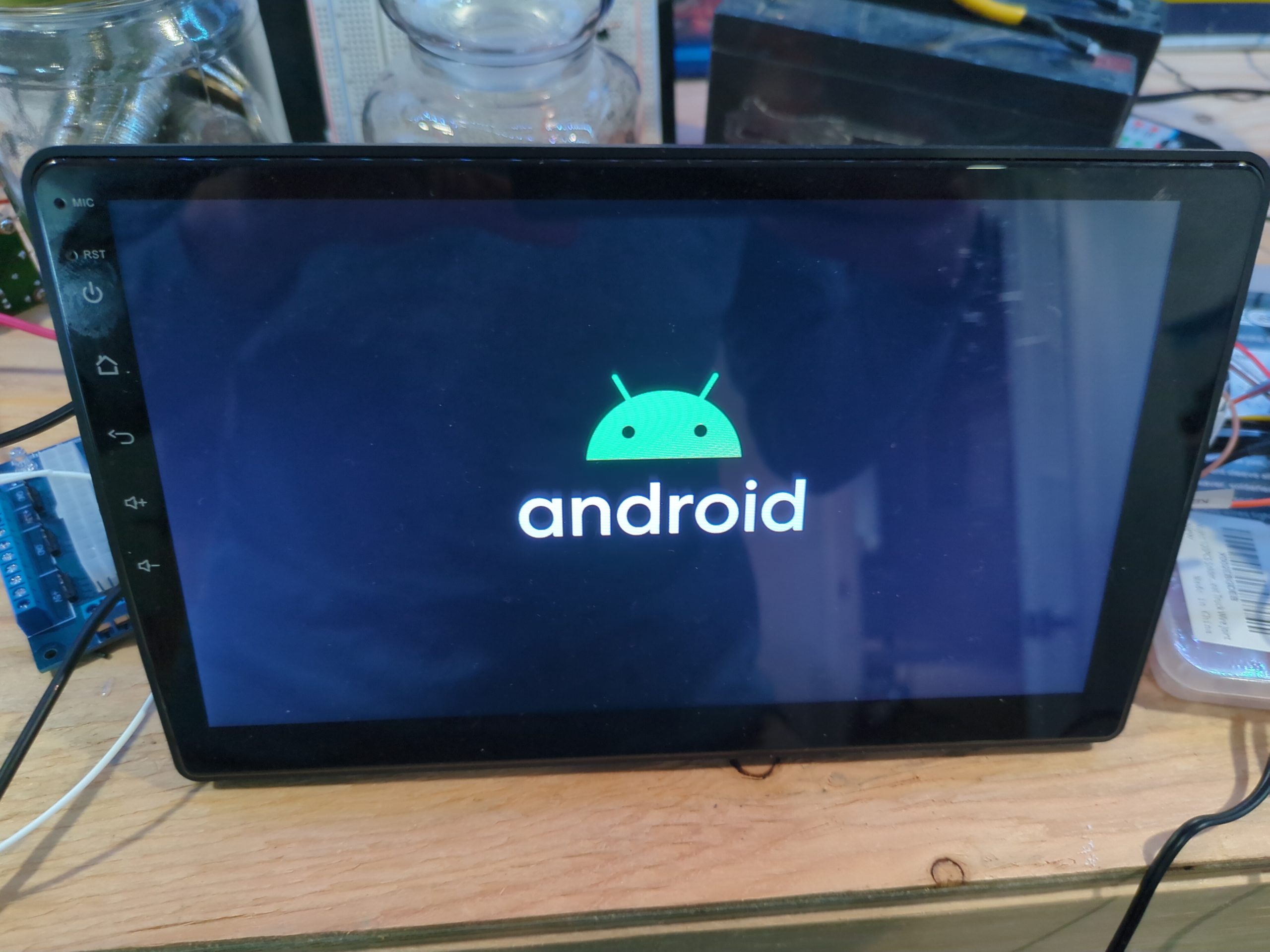
After I got it started, I noticed the radio was bootlooping, only showing the Android logo before going black again and repeating. I figured the radio must have failed somehow or got stuck on, and drained the battery over the course of the weekend.
Can I just reset it?
Since it is mostly a winter truck, I just took the radio out and put it on the bench to fix later. I tried the usual tricks to try and reset it:
- Hold reset button for N seconds (where N gets larger the more deperate you are!)
- Tap all 5 fingers on the display frantically as soon as power is applied.
- Hold Home, or Volume Down, or Volume Up AND Down….
You get the picture. Try to reset it to defaults so it loads again. But none of these made any difference and I was never greeted with Android Recovery. My guess is that the firmware got corrupted.
I’m no stranger to flashing Android ROMs. Fastboot is my friend. There are, however, many similar rebranded radios based on this chipset, the MediaTek MT8163. Because of this, flashing random ROM files from the Internet is not a great idea. If you find one not meant for your variant, best case is a soft brick, worst case is a permanent brick. (Probably not fire.)
Not finding a safe-feeling ROM, I put it on the shelf for a bit. Amazon return window long passed, the listing itself was even taken down. Eventually, I found a different user manual online with a support email address. After being ghosted, then forwarded to a few times, I finally got support from Junsun-US@outlook.com and they sent me an official ROM package.
This is where the fun begins.
Method 1: Flash MT8163 Update ZIP using USB Drive
These are the instructions I was provided by support, and in bold are some extra details to help you.
- Please extract the following compressed file into the “update_mt8163” folder, then copy that folder to the root directory of a USB flash drive.
https://mega.nz/file/qxxmWBZZ#LlUP4MmQhMDye37P3_WE9oVT7LzS-NuOx6CyKLfMXFY - Note: USB drive should be MBR with FAT32 partition, and I recommend a partition size <=8GB to ensure it is detected.
- Insert the USB flash drive into the device’s 6-pin USB port. Please note that a 6-pin port is required (4-pin ports are not supported).
- Short the ground wire of Remote Control 1 (KEY 1)
or Remote Control 2. Turn on the device; it will automatically enter the firmware flashing interface. - Note: power should really be disconnected right until this point. After KEY 1 is grounded, then connect your 12V supply.
- Below is a video demonstrating the procedure:
https://mega.nz/file/vlJR3JAK#bV9UvsvR5GjXQKpX4IIsXjC6sxy0QiyvahFm6k9VhGk
I followed these steps, but only one of two results happened:
- It just showed the Android logo, and after a few seconds reset as usual.
- It showed a black screen with backlight, and after about a minute reset as usual.
I could go on and on with all the ways I tried to format the drive or organize the contents. None of it worked. My guess is the Android Recovery was also corrupted.
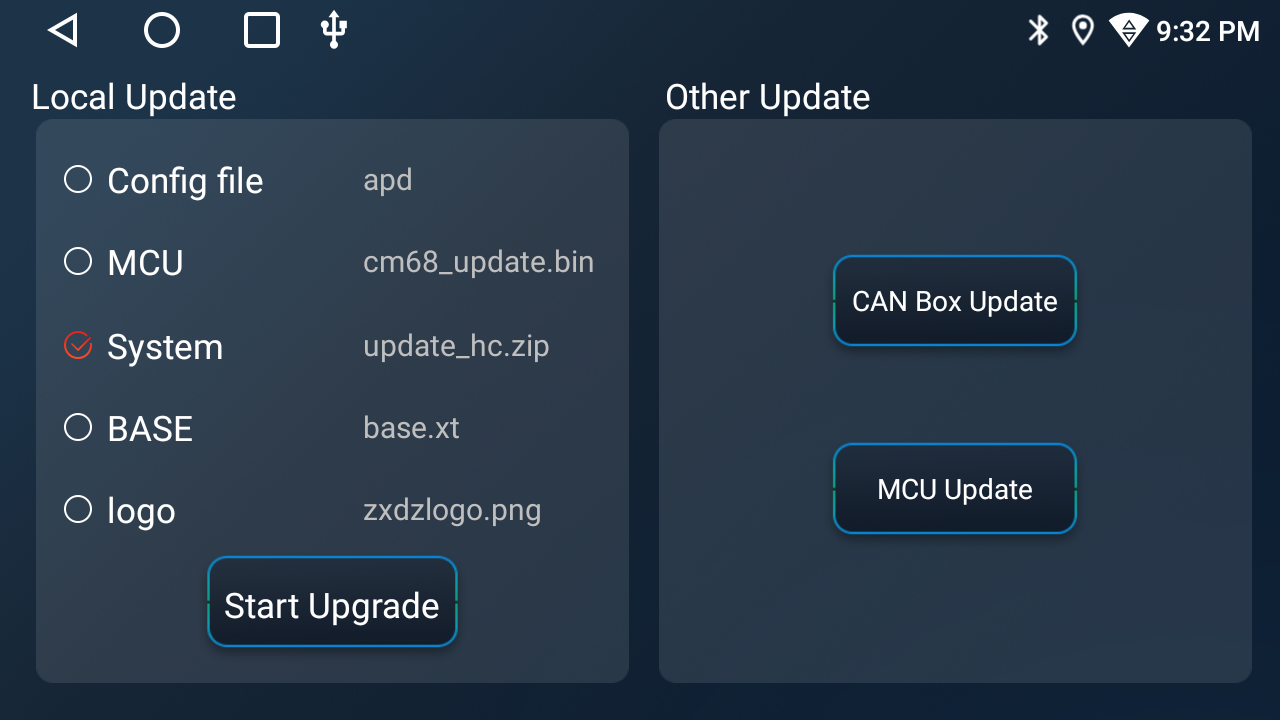
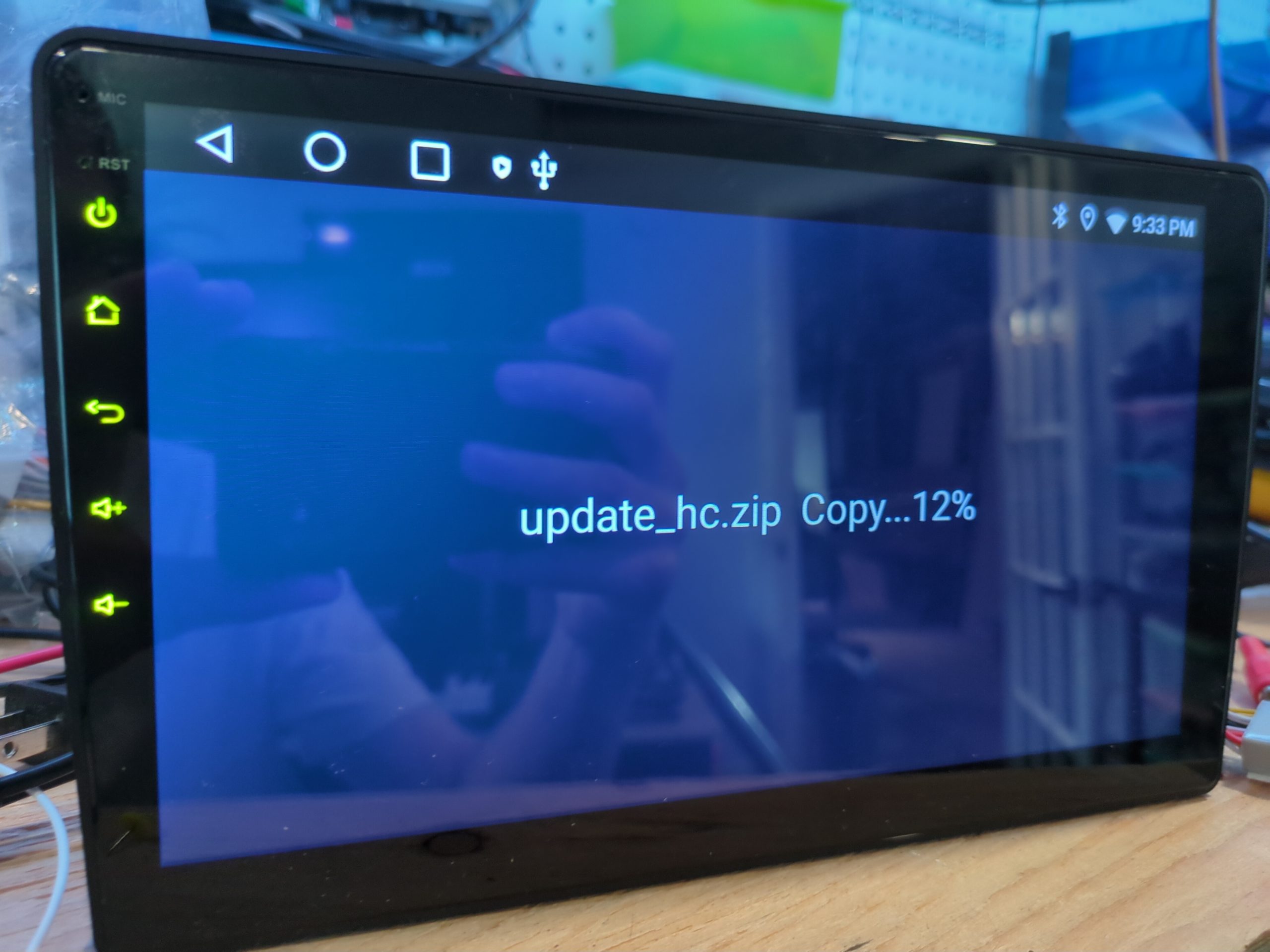
(As and aside, once I fixed the unit I still couldn’t get this method to work with an October 2025 “update_hc.zip” I found. In the end I flashed it with the built in Local Update tool.)
Method 2: Flash MT8163 Firmware using SP Flash Tool
This took a bit of digging, but I found SP Flash Tool which is specifically for flashing MediaTek chipsets used in phones and other Android devices.
This tool, combined with the files contained in the official “update_mt8163.zip”, is what brought the unit back to life.
- Install SP Flash Tool.
- If you use Linux, you may need to the following to not run SP Flash Tool as root (duh…)
THIS IS WHAT I DID AND WORKED (Fedora), but might not work for you. NEVER copy paste commands into your computer unless you understand them (or don’t care about the consequences.)
sudo nano /etc/udev/rules.d/99-mtk.rulesSUBSYSTEM=="usb", MODE="0666", GROUP="uucp"
# MediaTek BootROM / Preloader
SUBSYSTEM=="usb", ATTR{idVendor}=="0e8d", ATTR{idProduct}=="2000", MODE="0666", ENV{ID_MM_DEVICE_IGNORE}="1"
SUBSYSTEM=="usb", ATTR{idVendor}=="0e8d", ATTR{idProduct}=="0003", MODE="0666", ENV{ID_MM_DEVICE_IGNORE}="1"
# Serial port rule
KERNEL=="ttyACM*", ATTRS{idVendor}=="0e8d", MODE="0666", ENV{ID_MM_DEVICE_IGNORE}="1"sudo udevadm control --reload-rulessudo udevadm triggersudo usermod -aG dialout $USER- Log out / back in
sudo systemctl stop ModemManager
- If you use Linux, you may need to the following to not run SP Flash Tool as root (duh…)
- Extract the update zip on your computer.
- Open SP Flash Tool.
- Load the scatter file from the update folder.
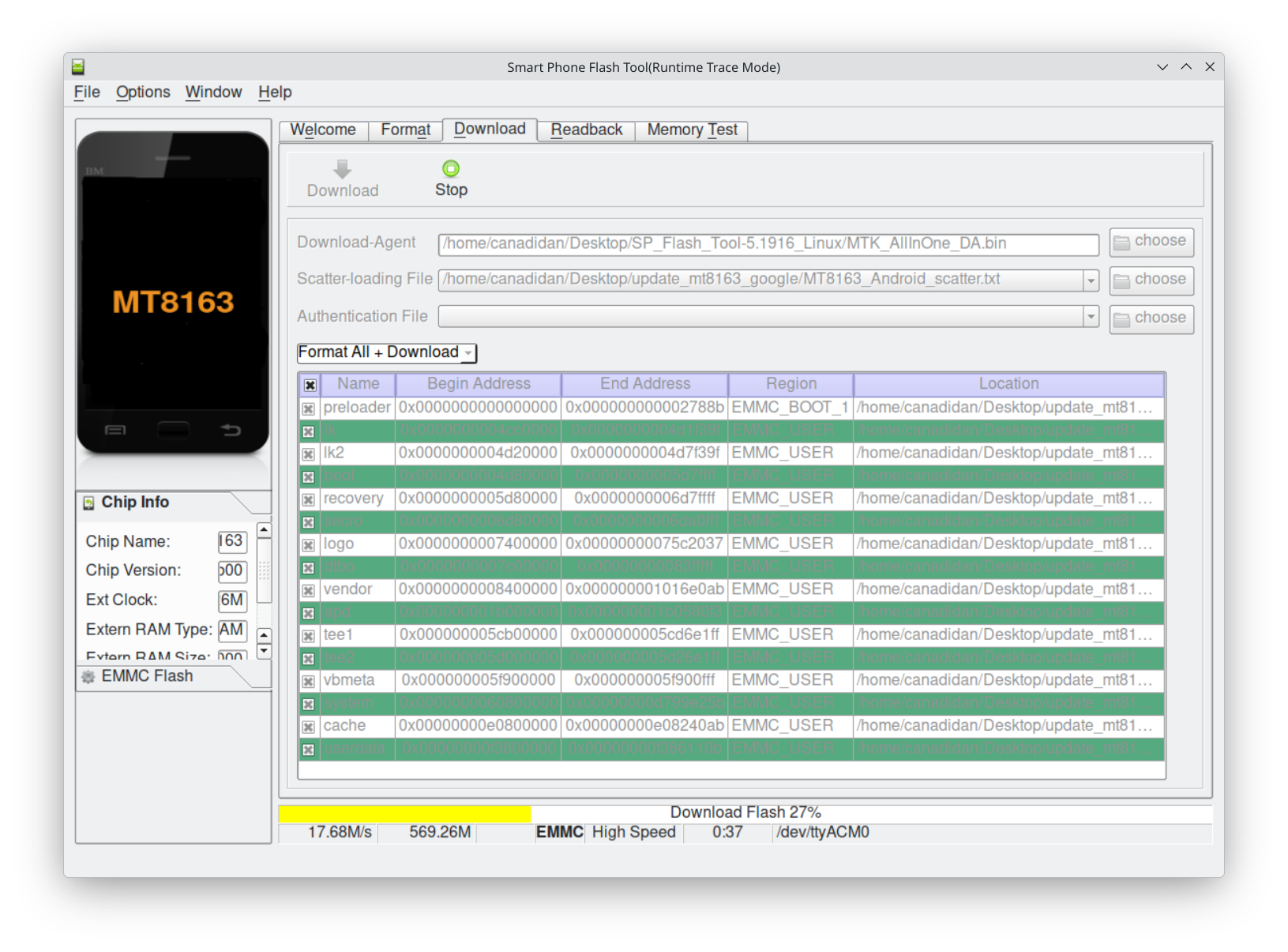
- Select “Format All + Download” if, like me, the whole thing needs to be reflashed.
This is your warning that if the file isn’t for your radio, it could be bricked after. - Remove power from the radio.
- Connect KEY 1 to ground.
- Connect the 4-pin to Mini-USB adapter to the radio, then a Mini-USB to USB cable on your computer.*
* This came with my radio, because it connects to the built-in USB port on Chevrolet/GMC trucks. Apparently not all radios have this, and they only come with a 4-pin to USB-A Female adapter. For those, you need to make the forbidden cable (USB-A Male to USB-A Male). - Connect 12V supply to the radio.
- Click Download in SP Flash Tool.
- SP Flash Tool should detect the radio after a few seconds and begin loading the firmware.
- Once it completes successfully, you will need to disconnect the USB cable and power cycle the radio.
Is it fixed?
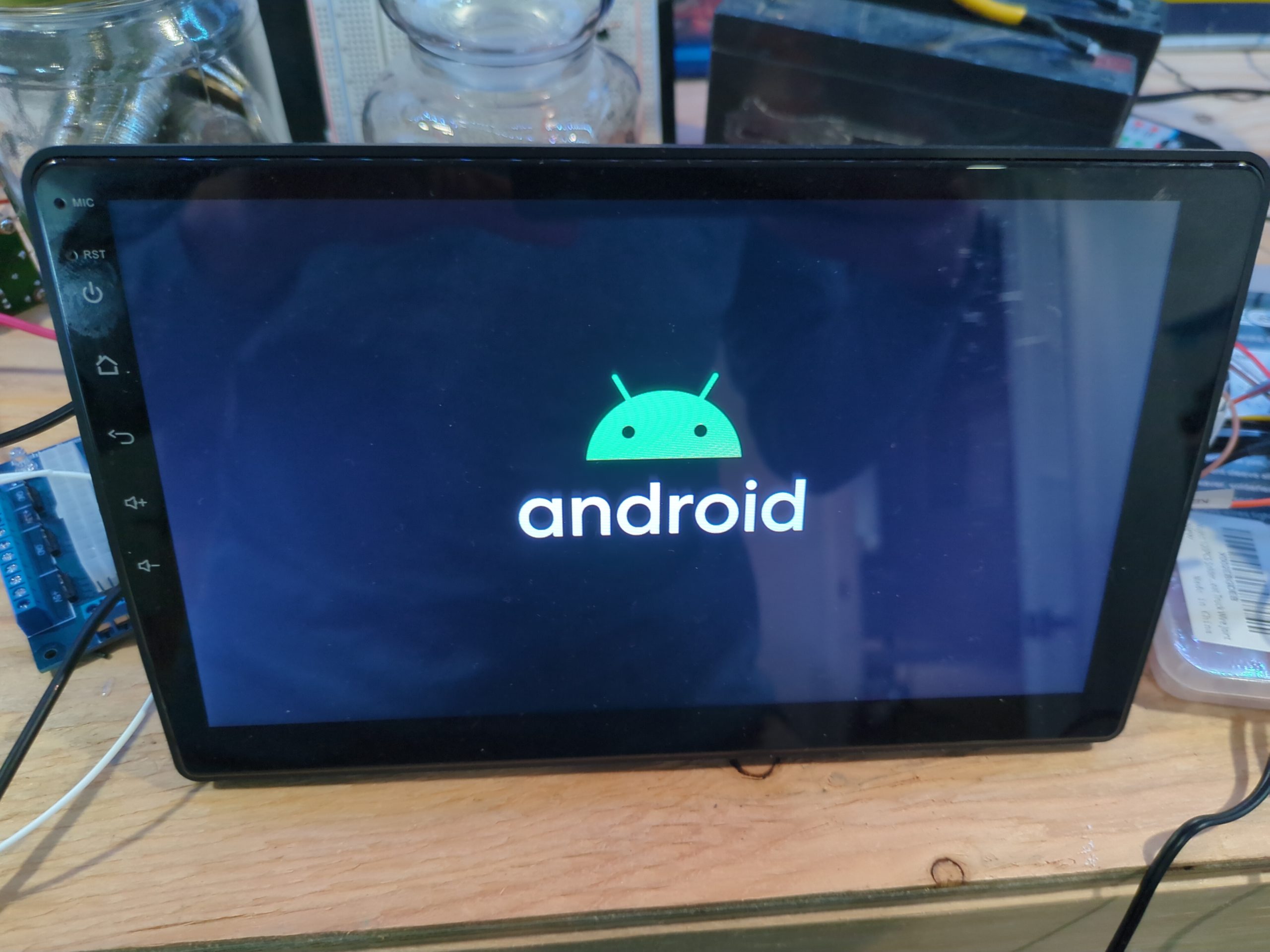
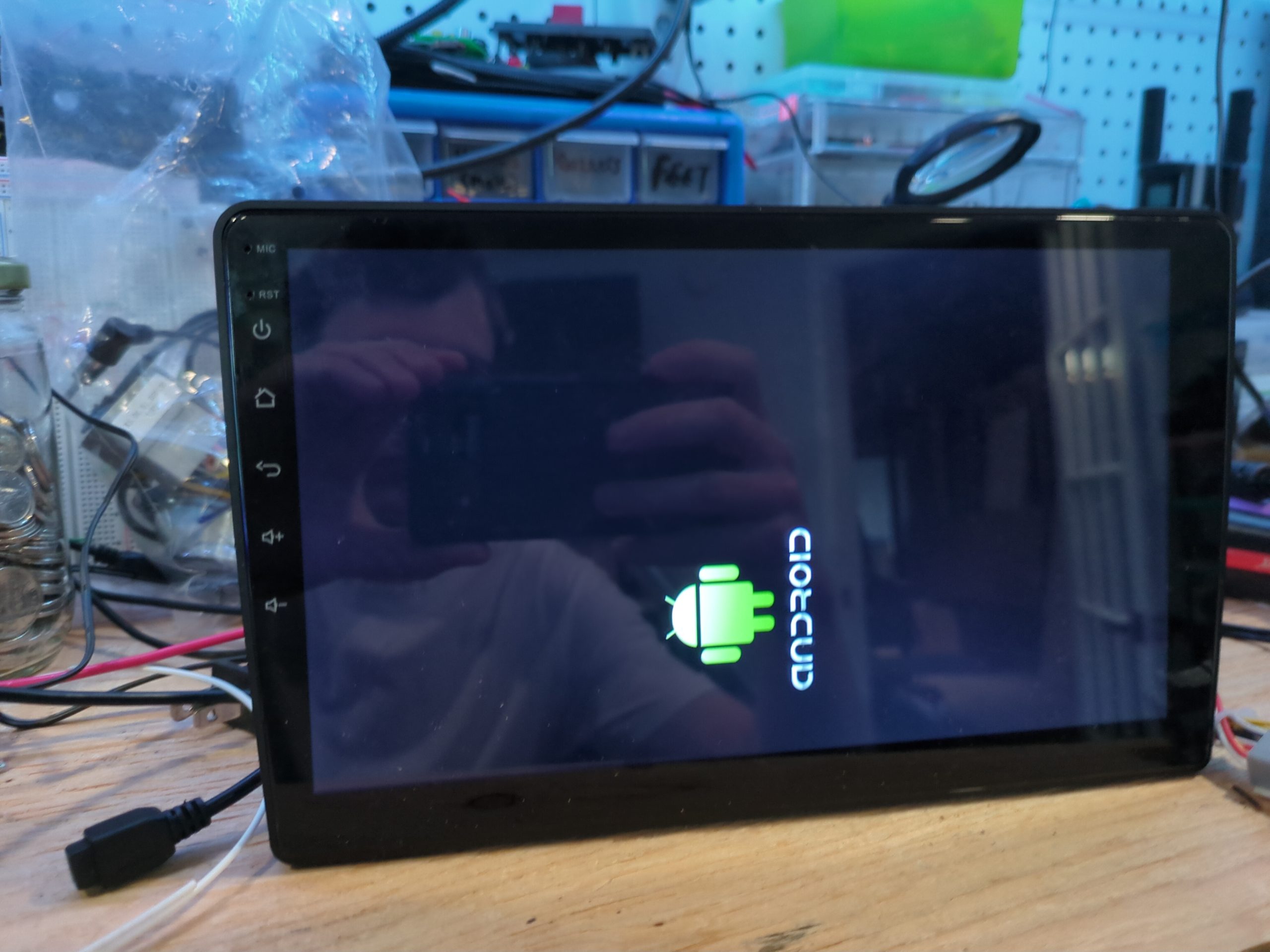
Yes, it is. The radio boots up.
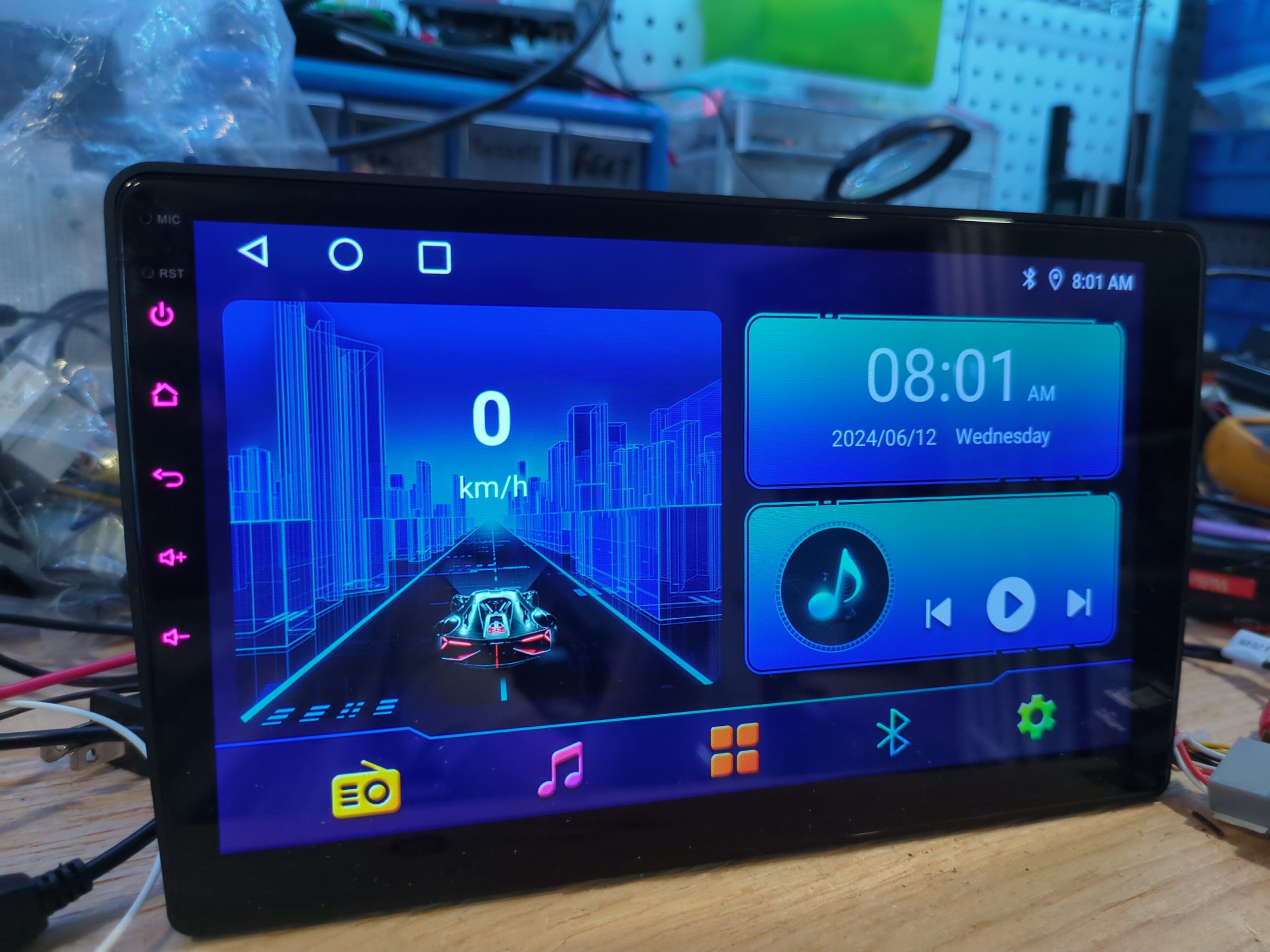
I have yet to test it in my truck to make sure the CAN bus and steering wheel controls work.
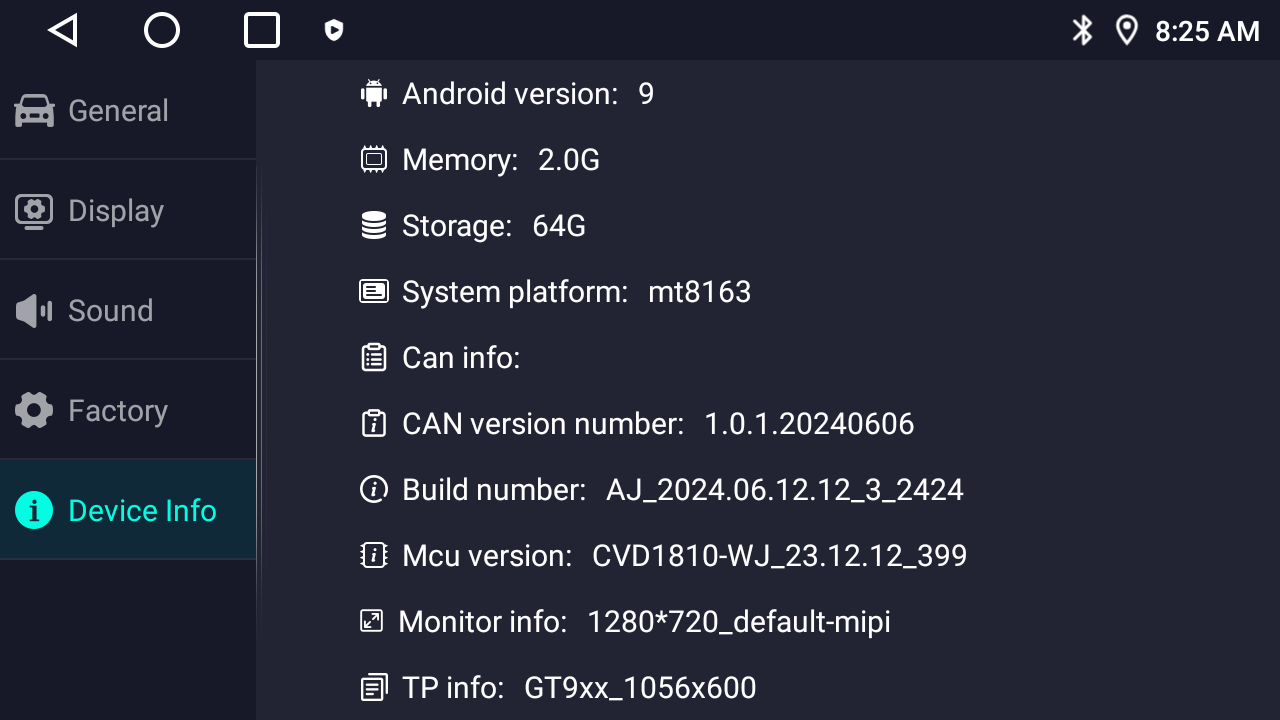
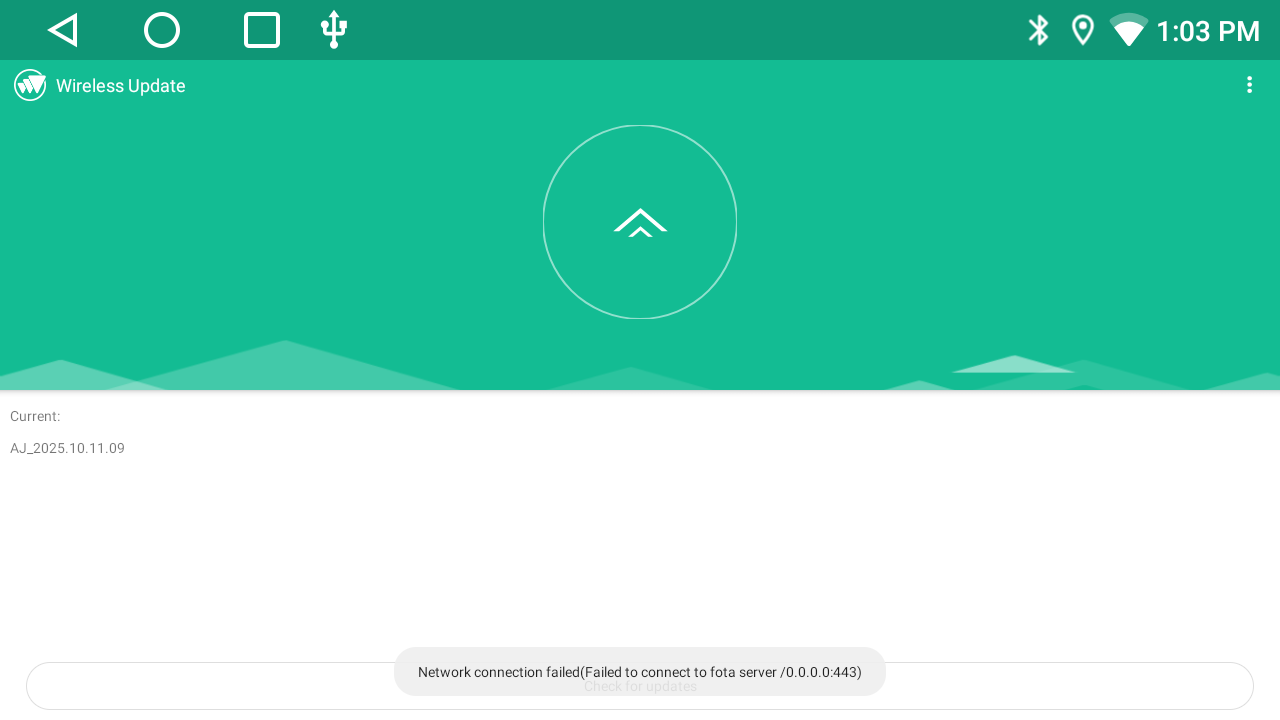
The provided firmware is Android 9, and I believe the radio was sold with Android 13. The online updater fails so I may be stuck here. That’s fine 🙂
Why write this up?
Because I got sick of Google giving me links to specific posts from the same forum thread that didn’t fully describe this process. Bits and pieces of info were scattered there, in the end this post put me onto using SP Flash Tool.
Hopefully, this helps you get your radio working!